Key Takeaways
You can analyze screenshots with AI more reliably when you give the model a clear image, a focused question, and enough context to interpret what it sees.
- Use screenshots that are sharp, relevant, and free of unnecessary personal information.
- Ask for visible evidence before asking for conclusions or recommendations.
- Use AI to inspect text, layouts, charts, errors, and interface patterns.
- Verify important numbers, labels, and technical findings against the original image.
- Treat AI output as a useful starting point, not a final authority.
What AI screenshot analysis can reveal
A screenshot contains more than words. It can include structure, spacing, visual emphasis, error states, data relationships, and clues about how a person might experience an interface. When you analyze screenshots with AI, you can turn that visual material into descriptions, questions, and possible next steps. The quality of the result still depends on the screenshot and the question you provide.
Text, numbers, and interface elements
AI can often read visible headings, labels, buttons, menu items, form fields, and short passages of text. It may also identify numbers, dates, prices, status indicators, and other interface elements. Ask it to transcribe the content exactly when accuracy matters, rather than asking for a broad summary that may silently omit details.
For a longer workflow, an AI screenshot analysis guide can help you think about extraction, questioning, and validation as connected steps rather than isolated tasks. You should still compare the response with the image, especially when text is small or partially obscured.
Layout, hierarchy, and visual patterns
A screenshot can reveal which elements attract attention first, how sections are grouped, and whether the visual hierarchy supports the intended task. Ask the model to describe position, size, contrast, alignment, and repetition before asking whether the design is effective. That sequence keeps the discussion grounded in what is actually visible.
You can use the same approach for a web page, dashboard, application screen, or promotional graphic. A visual review is more useful when you specify the audience and goal, such as finding a product, completing a form, or understanding a report.
Errors, warnings, and usability issues
Error messages and warning banners are often easier to interpret when you provide the surrounding screen, not just a tight crop of the message. AI may identify the visible wording, nearby controls, and the point in the workflow where the problem appears. It cannot reliably infer the underlying cause from a screenshot alone, so treat its diagnosis as a hypothesis.
Ask follow-up questions such as, “What evidence in the image supports that explanation?” or “What should I check next?” This encourages a practical response without turning a visual guess into a confirmed technical fact.
Images, charts, and structured information
AI can describe visible objects, explain the apparent structure of a chart, and organize information from a table or form. It may help you notice trends, repeated categories, or missing labels, but it should not be trusted to calculate precise results from a low-resolution image without checking the source data.
When the screenshot contains a chart, ask the model to distinguish between what is labeled directly and what it is inferring from visual shape or position. That small instruction makes the answer easier to audit.
Limitations of screenshot-based analysis
A screenshot does not show interaction, hidden content, system state, source code, or the full context in which the image was captured. AI can misread small type, confuse similar colors, overlook an element near the edge, or infer intent that the image does not establish. These limitations become more serious when the screenshot is compressed, cropped too tightly, or captured at an unusual scale.
Use visual analysis to narrow questions and speed up inspection, then confirm consequential findings through the interface, source document, logs, or another reliable record.
How to prepare screenshots for accurate AI analysis
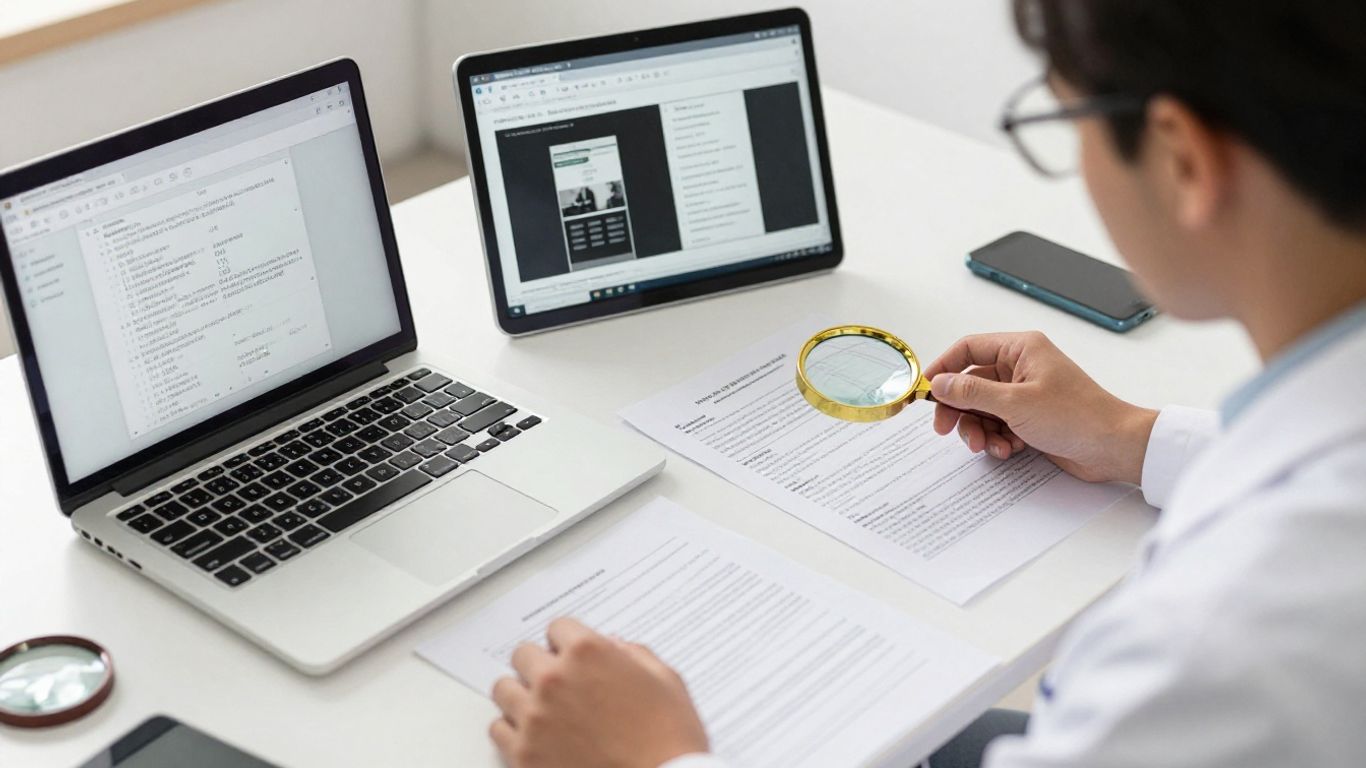
Preparation often matters more than the choice of wording. Before you upload an image, decide what you want to learn and remove anything that does not help answer that question. A clean, well-framed screenshot gives the model fewer distractions and gives you a better basis for checking its response.
Capture the right screen and context
Capture the state that matters to your question. If you are investigating an error, include the message and enough surrounding interface to show what action came first. If you are reviewing a design, include the complete viewport when possible so that spacing and hierarchy can be judged in context.
Add a short note outside the image describing the task, audience, or expected behavior. That context helps the model answer the question you actually have instead of producing a generic description.
Improve image quality and readability
Use the original screenshot rather than a photograph of a monitor, and avoid repeated resizing before upload. Keep text at a readable scale, crop out unrelated windows, and check that dark or light areas retain enough contrast. If a detail is essential, provide a separate close-up as well as the wider view.
Do not sharpen an image so aggressively that letters develop artificial edges. A natural, legible capture is usually more useful than one with heavy edits.
Remove sensitive or confidential information
Review the image for names, email addresses, account numbers, customer records, internal URLs, API keys, and private conversations. Blur or replace sensitive details before uploading, while preserving enough surrounding context for the task. Remember that a seemingly harmless screenshot can reveal more through browser tabs, notifications, or file names than through the main content.
If the information is not needed for the question, remove it. That simple rule reduces exposure without making the workflow complicated.
Organize multiple screenshots for comparison
When comparing screens, label them clearly in your own workflow and keep the capture conditions as similar as possible. Use the same viewport, zoom level, and relevant state so that differences are easier to attribute. You might compare an earlier and later version, two responsive layouts, or two steps in a checkout flow.
Ask the model to list differences first and evaluate them second. This separates the visual inventory from the judgment about whether a change helped.
Choose the right file format and resolution
PNG often preserves crisp interface text, while JPG can be adequate for photographic material but may introduce compression artifacts around letters. Use a resolution that keeps important details readable without creating an unnecessarily large upload. If a platform limits file size, crop irrelevant areas before reducing the image.
The right format is the one that preserves the evidence your question depends on. A smaller file is not automatically a better file.
How to analyze screenshots with AI step by step
A dependable workflow moves from observation to interpretation and then to action. You do not need a complicated prompt, but you do need to make the task concrete. Start with one question, inspect the response, and add follow-ups only when they resolve a specific uncertainty.
Upload the screenshot to an AI tool
Choose a tool that accepts images and fits the sensitivity of the material. With SnapQuery, you can analyze an image from a webpage through a browser workflow, ask questions about it, and revisit prior analyses in chat-like history. The product also lets you choose among supported AI models, including GPT-4o, Gemini, and GPT-4o-mini.
Upload the clearest version of the screenshot and check that the correct image was attached. If you are working from a web page, right-clicking or collecting images can be useful when you need to inspect several visual sources in one session.
Write a specific analysis prompt
A strong prompt names the task, the relevant area, and the form of answer you want. “What is this?” may produce a vague description, while “Transcribe the visible error message, identify the control that triggered it, and list two checks I can perform next” creates a more useful boundary.
Mention whether you want a transcription, comparison, explanation, critique, or recommendation. Also ask the model to say when something is unreadable or uncertain.
Ask the AI to describe visible evidence
Before requesting an opinion, ask for a neutral inventory of what appears in the screenshot. The response might cover visible text, controls, colors, relationships, labels, and obvious states. This gives you a reference point for spotting an incorrect reading.
Evidence before interpretation is a simple habit that improves the quality of the conversation. It also makes follow-up questions more precise because you can point to a particular element rather than disputing a broad conclusion.
Request recommendations or next steps
Once the visible facts are clear, ask what you could do next. For a design review, request prioritized changes tied to a stated goal. For troubleshooting, request checks that can confirm or reject the proposed explanation. For a document, ask for missing fields or inconsistencies to review.
Keep recommendations proportional to the evidence. A screenshot may support a small interface adjustment, but it rarely justifies a confident claim about user behavior or system performance by itself.
Verify important findings manually
Zoom into the original image and check every extracted number, label, and error message that affects your decision. If the answer involves a calculation, repeat the calculation from the source values. If it involves software behavior, reproduce the behavior or inspect the relevant logs and settings.
This final check is what turns a fast visual response into a responsible working note. You can also ask a second model or colleague to review an ambiguous image, but agreement alone does not prove that an interpretation is correct.
The best prompts for analyzing screenshots with AI
Prompt quality is less about clever wording than about defining a useful job. Tell the model what it should inspect, what it should ignore, and how it should structure the answer. A few well-chosen constraints usually produce better results than a long paragraph of background.
Prompts for extracting text and data
For extraction, ask for exact transcription and preserve the order in which content appears. You can request a table, a field-by-field list, or a short record, but specify how uncertain characters should be marked. This is especially helpful when the image contains dates, prices, identifiers, or form values.
Try: “Transcribe all readable text from top to bottom. Preserve line breaks where they matter, mark unclear characters with brackets, and do not infer missing words.”
Prompts for reviewing website and app UX
A UX prompt should name the user task and the screen’s intended purpose. Ask about hierarchy, clarity, navigation, feedback, and possible friction rather than simply asking whether the screen looks good. If you have a target audience, include it so the critique has a meaningful frame.
For a more repeatable process, you can ask for findings under four headings: observation, likely impact, severity, and suggested test. The result remains a starting point, but it is easier to discuss with a design or product team.
Prompts for debugging errors and technical issues
Technical prompts work best when they distinguish visible evidence from possible causes. Ask the model to quote the error, identify relevant context, list plausible explanations, and suggest safe checks in priority order. Do not ask it to claim that a cause is confirmed when the screenshot cannot establish that.
A useful pattern is: “What does this message say? What can be concluded from the image alone? What cannot be concluded? What should I inspect next?” That structure reduces overconfident troubleshooting.
Prompts for analyzing charts, dashboards, and reports
Tell the model which question the visual is meant to answer. Ask it to identify titles, axes, legends, units, labels, and visible comparisons before describing a trend. If the chart is dense, provide a crop of the relevant area and retain the full version for context.
You might ask: “Describe the labeled values and comparisons you can verify. Separate them from any trend you are inferring, and flag unreadable labels.” This keeps the analysis tied to the chart’s visible structure.
Prompts for comparing two or more screenshots
Comparison prompts should establish the order of the images and the dimension you care about. Ask for additions, removals, movements, copy changes, state changes, and visual differences, then request a judgment about which changes affect the stated task.
A concise prompt could be: “Compare screenshot A with screenshot B. List only visible differences first, grouped by layout, text, controls, and state. Then identify which differences might affect task completion and why.”
How to use AI screenshot analysis for different tasks
The same basic method applies across design, support, research, and documentation, but the standard for a good answer changes with the task. A marketing review may value clarity and consistency, while an error investigation may require exact wording and reproducible checks. Define success before you ask for analysis.
Website and landing page reviews
For a landing page, ask the model to inspect the headline, value proposition, hierarchy, calls to action, trust signals, and mobile framing. Give it a target audience and a primary action so recommendations are not based on personal taste alone. If the screenshot is from a live page, include the viewport and any relevant state.
You can then turn the findings into a short test plan: what to change, what behavior to observe, and what evidence would indicate improvement.
Mobile app and interface testing
Mobile screenshots can help you review tap targets, navigation cues, form clarity, empty states, and error feedback. Capture the sequence when the issue depends on more than one screen. Ask the model to identify where a user may lose context, but validate that concern through an actual usability test.
A single image can reveal a likely problem; it cannot establish how often real users encounter it.
Marketing and social media design audits
When reviewing social graphics, inspect legibility at small sizes, consistency across a set, image framing, contrast, and the relationship between copy and visual focus. Ask for observations tied to the intended platform and audience. Avoid asking the model to predict engagement from appearance alone.
A practical audit can separate immediate production fixes from questions that require audience testing. That distinction keeps the review actionable without overstating what the screenshot proves.
Software troubleshooting and error diagnosis
For support work, include the full error state and any visible steps that led to it. Ask for exact transcription, likely categories of cause, and a short sequence of safe checks. You can collect several related screenshots and compare them to see whether the error appears under different states.
Do not paste credentials or secret tokens into the image. If the error is security-sensitive or affects production systems, use the screenshot only as one input to a controlled investigation.
Document, receipt, and form analysis
Screenshots of receipts, forms, and scanned documents can support transcription, field identification, and preliminary organization. Ask for a structured response that preserves uncertainty and distinguishes printed content from handwritten marks. Always compare extracted totals, dates, and identifiers with the source document.
For a broader document workflow, review document analysis practices before deciding whether a screenshot is sufficient or whether you should work from the original file.
How to evaluate the quality of AI-generated insights
A polished answer can still be wrong. Evaluation should therefore focus on traceability: can you connect each important statement to something visible in the screenshot or to a check you performed afterward? The more consequential the decision, the more evidence you should require.
Check whether the AI interpreted the image correctly
Start by asking the model to point to the region supporting each claim, then inspect that region yourself. Check whether it confused a label with a value, read a disabled control as active, or mistook a decorative element for functional content. If the model cannot identify the relevant evidence, lower your confidence.
This quick visual audit is often enough to catch errors before they spread into a report or ticket.
Separate observations from assumptions
Ask the model to divide its response into visible observations, interpretations, and recommendations. An observation might be that a button is gray; an assumption might be that the button is disabled. The distinction matters because the screenshot may not show the interaction state.
You can use that separation in your own notes as well. It makes disagreements easier to resolve and prevents speculation from sounding like a fact.
Confirm extracted text, numbers, and labels
Read extracted content against the original at full size, paying particular attention to punctuation, decimal points, minus signs, and similar characters. For charts and tables, confirm the headings and units before using any comparison. If the source is blurry, ask for an uncertainty marker instead of silently filling the gap.
Never rely on an unverified extraction for a payment, compliance record, medical detail, or other high-impact decision.
Compare results across tools or models
Different models may notice different details, especially in crowded interfaces or ambiguous charts. You can compare responses, but do not treat a majority answer as proof. Look for the specific evidence each response cites and investigate disagreements against the original image.
A useful comparison table can keep the review focused:
| Review point | Model A | Model B | What to verify |
|---|---|---|---|
| Text transcription | Exact wording | Exact wording | Characters and line breaks |
| Layout observation | Main hierarchy | Main hierarchy | Position and visual emphasis |
| Error interpretation | Possible cause | Possible cause | Reproduction or logs |
| Recommendation | Suggested change | Suggested change | Fit with the task |
The table is most useful when it leads to a verification action rather than a simple score. Record what you checked and which answer, if any, you retained.
Create a repeatable review process
For recurring work, use the same capture rules, prompt structure, and evaluation criteria. Save the original screenshot beside the AI response, note the model and date, and record corrections. This gives you a way to improve the workflow instead of relying on memory.
A repeatable process also helps you identify when a specialized OCR, document, or computer vision tool would be more appropriate than a general visual chat model.
Privacy, security, and accuracy considerations
Screenshots frequently contain more personal or business information than you intend to share. A responsible workflow considers collection, upload, retention, access, and deletion before the analysis begins. Convenience should not replace a basic data-handling decision.
Protect personal and business information
Redact names, contact details, account identifiers, credentials, internal documents, and private messages whenever they are not necessary. Check browser tabs, notifications, file paths, and metadata as well as the main content. If you need context, replace sensitive values with consistent placeholders rather than exposing the originals.
For browser-based work, SnapQuery states that personal data, including image uploads, queries, and model responses, is not used to train SnapQuery. You should still review the current product terms and your organization’s policies before uploading confidential material.
Understand how uploaded screenshots may be stored
Before using any AI service, review its retention, processing, access, and deletion practices. Ask whether images and conversations are saved, how long they remain available, and whether administrators or service providers can access them. A tool’s convenience does not answer those questions automatically.
If the material is sensitive, choose a workflow approved for that data classification and avoid uploading more than the task requires.
Avoid relying on AI for high-risk decisions
Screenshot analysis can assist with review, but it should not be the sole basis for medical, legal, financial, employment, safety, or security decisions. Visual ambiguity, missing context, and extraction errors can produce confident-looking mistakes. Use qualified human review and authoritative source material when consequences are significant.
The higher the risk, the more useful it is to define a formal approval step before anyone acts on the output.
Review accessibility and bias concerns
Ask whether the analysis accounts for contrast, text size, color dependence, keyboard access cues, and readable labels. Do not assume that a visually polished screen is accessible, or that an AI critique reflects every user’s experience. Test with appropriate tools and people when accessibility matters.
Also watch for assumptions about users, language, culture, or intent. A screenshot rarely provides enough evidence to support broad claims about the people who created or use it.
Keep human judgment in the workflow
Human review is not a ceremonial final step. You decide what context matters, whether a recommendation fits the goal, and whether the evidence supports action. Use AI to shorten inspection and generate questions, then apply your own judgment to the result.
That balance is the safest way to gain speed without confusing a plausible visual explanation with verified knowledge.
Conclusion
To analyze screenshots with AI well, start with a clear purpose, prepare the image carefully, ask for observable evidence, and verify anything important. The strongest workflow treats AI as a fast visual assistant: useful for organizing what you see, raising questions, and suggesting next steps, while human judgment remains responsible for the final decision.
Frequently Asked Questions
What can AI identify in a screenshot?
AI may identify visible text, interface controls, layout relationships, images, charts, warnings, and other visual patterns. Its accuracy depends on image quality, context, and the complexity of the content.
Can AI read text from screenshots?
It can often transcribe readable text, but small, blurry, stylized, or partially hidden characters may be misread. Check important transcriptions against the original image.
How should I write a screenshot analysis prompt?
State what the image contains, what you want to know, which area matters, and how the answer should be organized. Ask the model to separate visible evidence from assumptions.
What screenshot format works best for AI analysis?
Use a clear original capture with enough resolution for the important details. PNG is often useful for interface text, while JPG may work for photographic content if compression does not obscure evidence.
Can AI diagnose an error from a screenshot?
It can explain visible wording and suggest possible causes or checks, but a screenshot rarely proves the underlying cause. Reproduce the issue or inspect logs and settings before acting.
Should I blur private information before uploading?
Yes. Remove or redact personal, confidential, financial, credential, and business-sensitive information unless it is necessary for the task and allowed by your data-handling policy.
How can I tell whether an AI screenshot analysis is reliable?
Compare its claims with the image, confirm extracted text and numbers, separate observations from assumptions, and manually verify findings that affect important decisions.