Key Takeaways
Chat with images lets you ask questions about visual material instead of treating every file as something you must inspect manually. The best results come from clear prompts, readable source images, and a habit of checking important answers.
- Image understanding interprets existing visual content, while image generation creates or changes it.
- Good context helps an AI focus on the part of an image that matters to you.
- You can use image conversations for text extraction, visual explanation, research, work, and study.
- Iterative prompts are useful when an image edit or analysis needs refinement.
- Privacy checks and human review still matter for sensitive or high-stakes material.
What chat with images means and how it works
Chat with images combines visual input with a conversational interface. You provide a photo, screenshot, scan, or other visual file, then ask for an explanation, extraction, comparison, or creative response. The system examines patterns in the image and returns language you can refine with follow-up questions. The quality of that exchange depends on both the model and the information visible in the file.
Image understanding versus image generation
Image understanding starts with an existing image and produces an interpretation of it, such as a description, text transcription, or answer about visible details. Image generation starts with an instruction and produces a new visual result; some tools can also modify an uploaded image. Keeping these tasks separate helps you write a more precise request. “Read the receipt” asks for understanding, while “create a clean product scene” asks for generation.
How multimodal AI interprets visual content
A multimodal model processes visual features alongside your written prompt. It may connect objects, spatial relationships, colors, text, and layout to the question you ask. That does not mean it sees an image exactly as a person does; it forms a probabilistic interpretation from the available pixels and context. You will get more useful answers when you identify the purpose of the analysis rather than asking only for a vague description.
Common supported file types and image requirements
Support varies by tool, but common image formats include JPG, JPEG, PNG, WEBP, and BMP. File-size limits, image-count limits, and support for animated files can differ, so check the service before preparing a batch. For browser-based work, image analysis from webpages can be especially convenient when the source is already open and you do not want to download every file first.
A practical workflow is to use the original file when possible, crop away unrelated material, and upload separate images when each one needs a distinct answer. This gives the model a clearer visual task and makes your later questions easier to trace.
Why image quality affects response accuracy
Blur, compression, glare, tiny lettering, and unusual angles can hide the evidence an AI needs. A model may then guess at a word, misread a number, or confuse two similar objects. Readable source material matters more than an elaborate prompt when the task depends on fine detail. Improve the crop or resolution first, then ask the question again rather than treating a confident answer as proof.
How to start a chat with images
Starting a visual conversation is usually simple: choose a tool, add an image, and describe what you need. You can begin with a broad request, but a focused first question gives the system a useful target. Keep the original goal in mind, whether you are checking a screenshot, studying a diagram, or sorting research material.
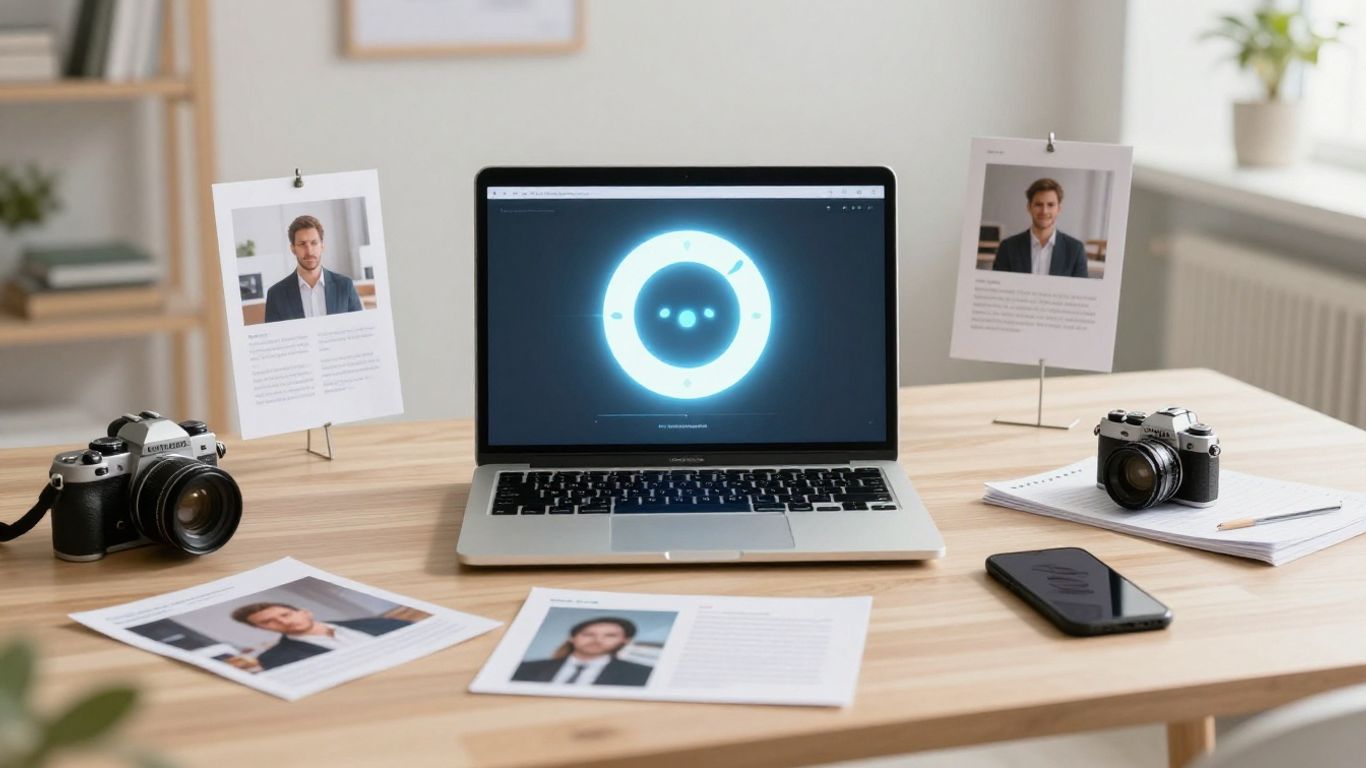
Choosing an AI image chat tool
Choose a tool based on the job, not just the novelty of image input. Look for the file types you use, the ability to ask follow-up questions, model options, history, and controls for handling uploaded content. For web research, SnapQuery lets you upload screenshots, photos, or documents, ask questions in plain language, and continue with follow-up questions in the same chat thread.
Uploading one or more images
Attach the clearest version of the image and wait until it is fully available before sending your prompt. If you have several related visuals, label them in your message—“first image,” “second image,” or “the page on the right”—so the conversation has an explicit reference. When a batch contains unrelated subjects, separate chats may produce cleaner results.
Writing prompts that provide useful context
Tell the model what the image is, what you want to know, and what form the answer should take. A request such as “extract the product names into a two-column list and mark uncertain readings” is more useful than “analyze this.” Mention the audience or decision behind the task when that changes the level of detail. You can also ask for uncertainty to be stated instead of hidden.
Asking follow-up questions for deeper analysis
A first answer is often a starting point rather than the finished analysis. Ask the model to zoom its attention onto one region, explain a conclusion, compare two items, or separate observation from inference. Follow-up questions work best when they refer to a visible feature and build on the previous answer. If the thread becomes confusing, restate the relevant image and goal in a fresh message.
What you can do with image conversations
Visual chat is useful because it turns an image into an object you can question from several angles. You might request literal transcription, a plain-language explanation, a structured summary, or ideas based on the visual tone. The same image can support different tasks as your purpose changes.
Extracting text and data from images
You can ask for text from signs, receipts, labels, screenshots, forms, or photographed pages. For structured material, specify the desired fields and output format, then ask the model to flag unreadable or ambiguous entries. Manual checking is still wise when a single digit, name, or decimal point affects the result. A clean crop of the relevant region often improves extraction more than adding extra instructions.
Explaining charts, diagrams, and screenshots
Ask the AI to describe the parts of a diagram, summarize a chart’s visible trend, or explain what a software screenshot appears to show. You can request a beginner-friendly explanation first, then ask about a particular axis, control, or relationship. For a broader workflow, this visual analysis guide offers another angle on asking questions about images and diagrams.
A useful answer should distinguish what is directly visible from what is inferred. If a chart lacks labels or a screenshot cuts off important context, the response should acknowledge that gap.
Identifying objects, layouts, and visual patterns
Image conversations can help you inventory objects, describe a room or webpage layout, and notice repeated colors, shapes, or placements. Ask for a bounded task, such as identifying items in the foreground or comparing the arrangement of two images. Avoid treating visual identification as certain when objects are partly hidden, distant, or visually similar.
Brainstorming captions, descriptions, and creative ideas
You can use an image as a starting point for captions, alt text, product descriptions, mood boards, or editorial angles. Tell the model who will read the result and whether you want a factual, playful, concise, or accessible style. Review creative suggestions for accuracy, especially when they imply a location, event, identity, or emotion that the image does not establish.
How to use chat with images for work and learning
Images often contain work that is difficult to search: a photographed whiteboard, a slide deck, a spreadsheet screenshot, or a product reference. A visual conversation can give you a first pass before you organize the material yourself. Treat it as an assistant for sorting and explanation, not as a replacement for the source file or your judgment.
Reviewing documents, slides, and spreadsheets
Upload a page or screen capture and ask for its headings, key points, missing information, or apparent inconsistencies. For tables, request a transcription with column names and ask the model to mark uncertain cells. If you are reviewing several pages, number them and ask for a page-by-page result before requesting an overall summary. This makes omissions easier to find.
Getting feedback on designs and marketing assets
Ask for feedback on hierarchy, contrast, spacing, cropping, and the clarity of a visual message. Give the intended audience and placement—such as a mobile feed, presentation, or storefront—because a design can work in one context and fail in another. Ask for observations first and recommendations second so you can see which suggestions are grounded in the image.
Analyzing product photos and real-world examples
A product photo can support an inventory, presentation, condition check, or comparison of visible features. Ask the model to describe only what can be seen and to separate visible characteristics from assumptions about quality or performance. When comparing examples, use consistent questions for every image so the results are easier to review.
Turning educational visuals into study materials
A diagram, map, labeled illustration, or photographed page can become flashcards, practice questions, or a step-by-step explanation. Tell the model your level and ask it to preserve important terminology while defining unfamiliar words. You can then answer the questions yourself and use the image to verify what you remembered.
How to create and edit images through chat
Some visual tools support creation as well as analysis. You describe a subject, composition, mood, or intended use, and the system returns a generated image or an edited version. The conversation becomes more effective when you treat each request as a visual brief with priorities and limits.
Generating new images from text instructions
Start with the subject, setting, point of view, lighting, and intended format. If the image is for a particular audience, say so, but avoid packing the prompt with contradictory adjectives. Ask for one clear direction first, then adjust the result after you see what the system interpreted. Generated images should be reviewed for unwanted details and factual inaccuracies.
Requesting targeted edits to an existing image
Name the exact area to change and describe what should remain untouched. For example, you might request a different background while preserving the subject’s pose, clothing, and position. Vague instructions can cause wider changes than intended. If the editor supports masking or selection, use it to define the edit boundary.
Controlling style, composition, and visual details
Specify visual choices in concrete terms: a close-up or wide view, a centered or asymmetrical layout, warm or cool lighting, and a restrained or vivid palette. Mention required objects and exclusions separately. Dimensions and placement are easier to control when you describe relationships, such as “leave open space on the left for a headline,” rather than relying on abstract style words alone.
Refining results through iterative prompts
Review each result against the brief and change one or two variables at a time. If the subject is correct but the framing is wrong, address framing without rewriting every other instruction. Save useful versions so you can compare progress. Iteration is not a sign that the first prompt failed; visual details often need adjustment after you see how they were rendered.
How to write better prompts for visual tasks
A strong visual prompt reduces guesswork. It tells the AI what to inspect or produce, why the result matters, and how you want the response delivered. You do not need technical jargon; direct descriptions of the task, evidence, and constraints are usually enough.
Defining the goal, audience, and desired output
Begin with a verb such as extract, compare, explain, classify, rewrite, or create. Then name the audience and output: a short summary for a manager, study questions for a beginner, or a table for later editing. This structure keeps the response connected to an actual decision or deliverable. If you want a factual description, say that interpretation and speculation should be labeled.
Directing attention to specific parts of an image
Point to a region using position, color, labels, or nearby objects. “Read the small text in the lower-right corner” gives the model a narrower task than “read the image.” For multi-image conversations, identify each file and ask for a comparison on named criteria. If the first answer focuses on the wrong area, repeat the location and explain what was missed.
Specifying formats, dimensions, and constraints
State whether you want paragraphs, JSON, a checklist, a table, or a short caption. For generated visuals, include aspect ratio, approximate dimensions, orientation, background requirements, and elements to exclude when those details matter. A compact set of constraints is easier to follow than a long paragraph containing competing priorities. Test the result before adding more rules.
Correcting errors with precise follow-up instructions
Describe the error plainly and give the replacement instruction: “The label is being read as 18; inspect the crop again and mark it uncertain if the final digit is unclear.” For edits, identify what changed incorrectly and what must stay fixed. This kind of correction creates a clear next step and reduces the chance that the model will make a different, unrelated change.
The multiple-model image query guide can help you think about comparing perspectives when one interpretation is not enough. In practice, you can ask separate models or repeated prompts to examine the same evidence, then reconcile differences against the original.
Privacy, accuracy, and limitations to consider
An uploaded image may contain names, faces, account details, location clues, or confidential work. Before sending it, consider whether you can crop, blur, redact, or replace sensitive material. You should also understand how the chosen service handles uploads, prompts, chat history, and deletion requests. Convenience is useful, but it should not erase basic information-handling judgment.
Protecting sensitive information in uploaded images
Remove details that the task does not require, especially identification numbers, private messages, financial information, and confidential documents. Check the tool’s privacy documentation and permissions before using it for work material. For SnapQuery, the company states that personal data, including image uploads, queries, and model responses, is not used to train SnapQuery; you should still follow your organization’s own approval and retention rules.
Checking AI interpretations against the original
Keep the source image open while reviewing the response. Compare extracted text character by character when accuracy matters, and inspect the relevant crop when the model describes a small object or chart feature. Ask for uncertainty markers, but do not assume that a confident tone means the visual evidence is clear. Your source remains the reference point.
Recognizing ambiguity, bias, and hallucinations
An image can support several plausible readings, particularly when it is dark, cropped, culturally specific, or missing context. Models may also infer identities, intentions, or causes that are not actually visible. Ask the system to list observations separately from assumptions and to explain what evidence supports each conclusion. If the evidence is insufficient, a careful answer should say so.
Knowing when human or professional review is necessary
Use qualified human review for medical, legal, financial, safety, employment, identity, and other high-consequence decisions. A visual model can help organize material or surface questions, but it should not be the sole basis for an irreversible action. The same caution applies to publishing claims about people, products, or events based only on an image.
Conclusion
Chat with images gives you a practical way to question photos, screenshots, documents, and generated visuals in plain language. You will get the most value by supplying readable images, setting a specific goal, refining answers through follow-up prompts, and checking important details against the original. Used with those habits, visual AI can shorten routine analysis while leaving judgment where it belongs: with you.
Frequently Asked Questions
What is chat with images?
Chat with images is a conversational way to provide visual content and ask questions about what it contains. Depending on the tool, you can request descriptions, text extraction, explanations, comparisons, or creative responses.
Can I ask questions about more than one image?
Often, yes. Upload related images and identify them clearly in your prompt, then ask for a comparison or a separate result for each file. Check the tool’s image-count and file-size limits first.
What image formats usually work?
JPG, JPEG, PNG, WEBP, and BMP are common supported formats, but the exact list varies. The service may also limit file size, resolution, or the number of images in one conversation.
How can I improve an inaccurate image answer?
First check whether the source is blurry, cropped, or poorly lit. Then point to the exact region, restate the task, and ask the system to mark uncertain readings instead of guessing.
Can image chat read text from photos?
It can often extract visible text from photos, scans, screenshots, labels, and receipts. Small, distorted, handwritten, or low-contrast text may be misread, so verify important characters against the original.
Can chat with images create or edit pictures?
Some tools can generate new images from written instructions or make targeted edits to an uploaded image. Results improve when you specify what should change, what must remain unchanged, and the desired composition.
Should I trust an AI image analysis completely?
No. Treat it as a useful first interpretation, not unquestionable evidence. Check important claims against the original and seek human or professional review for high-stakes decisions.