Key Takeaways
An ai image analyzer for documents can turn photographed or scanned pages into searchable, structured information, but reliable results depend on image quality, context, and review.
- It reads more than isolated words, including layout, tables, forms, and visual cues.
- Preprocessing, OCR, and multimodal interpretation usually work together.
- Invoices, applications, archives, diagrams, and incoming mail can follow different workflows.
- Confidence thresholds and validation rules help you decide when people should check the output.
- Privacy, file support, integration, and testing matter as much as raw recognition accuracy.
What an AI image analyzer for documents does
An ai image analyzer for documents examines a page as a visual object rather than treating it as a plain string of characters. You can use it to locate text, understand where information appears, and turn relevant findings into structured fields or practical answers. The result is more useful when the system preserves relationships between labels, values, sections, and marks on the page. For broader background, this AI image analysis guide explains how visual tools combine recognition with confidence scores and human review.
How image analysis differs from traditional OCR
Traditional OCR primarily converts visible characters into machine-readable text. That remains useful, but it can lose the meaning created by columns, headings, checkboxes, nearby labels, or handwritten annotations. Image analysis adds a visual interpretation layer, so you can ask what a field means, which value belongs to it, or how separate regions relate. Context changes the answer when the same number could be a date, price, account identifier, or page reference.
Which document elements it can recognize
Depending on the model and the quality of the input, analysis may identify printed text, handwriting, tables, checkboxes, signatures, stamps, logos, diagrams, and distinct regions of a page. Recognition is not the same as verification: detecting a signature-like mark does not establish who signed it or whether it is valid. You should define the exact elements you need before judging whether a tool is suitable.
How it combines text, layout, and visual context
A useful system connects words to their position and surrounding design. It can associate a label with the value beside it, distinguish a table header from a row entry, and interpret a question in relation to the uploaded page. With SnapQuery, you can analyze an image from a webpage, ask natural-language questions, choose among supported AI models, and revisit analyses in chat-like history. That browser workflow is especially helpful when your source material is scattered across research pages rather than stored in one repository.
Common document types it can process
You may analyze photographed paperwork, scanned PDFs, invoices, receipts, applications, claims, letters, reports, screenshots, charts, and technical drawings. Each type calls for different checks: a receipt needs reliable amounts and dates, while a drawing may require attention to symbols and spatial relationships. The best results come from matching the task and document family instead of expecting one prompt to handle every page equally well.
How AI analyzes images of documents
The process usually moves from pixels to regions, from regions to text and objects, and then from those observations to an interpretation. Some tools perform these stages separately; others combine them inside a multimodal model. You should still think of the output as an analysis to validate, not as a guaranteed transcription. The following stages make it easier to locate errors and improve the workflow.
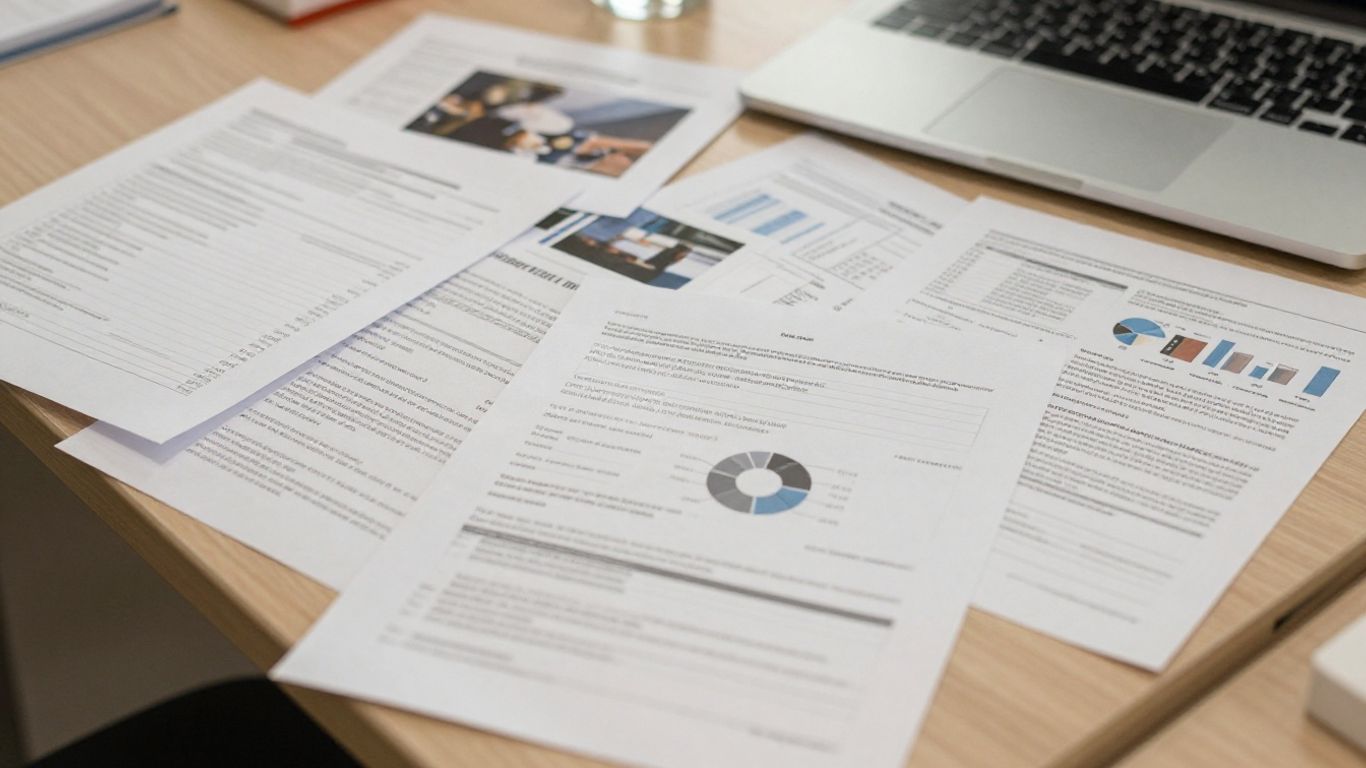
Image preprocessing and quality improvement
Before recognition begins, a system may correct rotation, crop irrelevant borders, improve contrast, reduce noise, or separate pages. You can help by providing a sharp image with even lighting and by avoiding glare, shadows, and extreme perspective. Cropping a single region can also help when a small field is difficult to read, although you should retain the original for later comparison.
Text detection and optical character recognition
Text detection finds likely text regions, while OCR converts those regions into characters and words. The process can struggle with unusual fonts, low contrast, compression artifacts, curved pages, and handwriting. If a value is financially or legally significant, compare it with the source image and preserve the location from which it was extracted.
Table, form, and layout understanding
Tables and forms are difficult because their meaning comes from alignment and grouping, not just vocabulary. A reliable analyzer should distinguish headers, rows, columns, labels, answer areas, and repeated sections. When you test a workflow, include blank fields, merged cells, multi-page tables, and forms where the same label appears more than once.
Object, signature, and stamp recognition
Visual analysis can flag the presence and position of marks such as stamps, signatures, seals, checkboxes, or attached objects. Those observations can support triage, but they should not be treated as authentication by themselves. A faint stamp may be missed, and a printed signature may resemble a handwritten one without carrying the same evidentiary meaning.
Contextual interpretation with multimodal AI
Multimodal AI can answer questions about relationships within a page, such as which instruction applies to a selected field or what a diagram is showing. You get better answers when you ask focused questions and identify the page, region, or comparison you care about. The document analysis guide offers a useful reminder to prepare files, consider OCR limits, and protect confidential information.
The video placeholder can support a visual walkthrough, but it should complement—not replace—testing against your own documents and source records.
Key use cases for document image analysis
Document image analysis becomes practical when it is tied to a decision or a repeatable workflow. You might want searchable archives, faster data entry, an initial review of incoming forms, or a way to ask questions about complex visual material. The appropriate output differs by use case: plain text may be enough for search, while finance or operations may need validated fields. Start with one document family and measure the work saved without hiding uncertainty.
Digitizing scanned paperwork and archives
For older records, analysis can convert page images into searchable text and help identify names, dates, headings, or categories. You can retain the original scan while adding extracted text and page references for discovery. Batch work benefits from consistent naming and a review sample, especially when paper quality changes across decades.
Extracting data from invoices and receipts
Invoices and receipts often contain recurring fields, but their layouts vary widely. You can target totals, dates, supplier details, line items, taxes, and payment references, then compare extracted values with accounting rules. A human check is sensible for unclear digits, unusual tax treatment, or documents that do not match the expected template. For monthly bank statements, a PDF bank statement converter is a better fit than general image OCR when you need consistent transaction rows in Excel, CSV, or JSON.
Reviewing forms, applications, and claims
Forms invite structured questions: which fields are complete, which boxes are selected, and which supporting marks appear on the page? Analysis can help sort submissions for follow-up, provided your rules distinguish an empty field from an unreadable one. For claims or applications, keep the original evidence beside the extracted result so reviewers can resolve ambiguity quickly.
Analyzing charts, diagrams, and technical drawings
Charts and diagrams require more than OCR because the visual relationship between labels, lines, symbols, and values carries much of the meaning. You can ask an analyzer to describe regions, compare visible patterns, or identify labels that need closer inspection. Treat numerical readings from a dense chart as provisional unless you verify them against the source.
Classifying and routing incoming documents
Incoming pages can be classified by document type and routed to different queues, such as finance, support, compliance, or records. A simple first version might use broad categories and send uncertain cases to a review queue. This approach prevents a confident-looking but incorrect classification from silently sending a document to the wrong team.
Benefits and limitations to consider
The appeal of an ai image analyzer for documents is not just speed. It can make visual material searchable, reduce repetitive copying, and give you a consistent first pass across a large collection. Yet visual interpretation remains sensitive to image quality, unusual layouts, and missing context. You should balance convenience with controls that make mistakes visible.
Faster data extraction and document review
Automation can reduce the time you spend locating repeated fields or scanning pages for obvious patterns. It is most valuable when the work is frequent, the document family is reasonably consistent, and the cost of a missed detail is understood. Faster processing should create more time for judgment, not encourage you to skip judgment altogether.
Improved searchability and workflow automation
Extracted text and fields can make archives easier to search and can trigger downstream steps such as categorization, assignment, or review. A useful output includes enough context to trace a result back to its page and region. If you are choosing a workflow, compare tools by structured image analysis needs, including formats, volume, speed, accuracy, and the kind of answer you require.
Accuracy challenges with handwriting and poor scans
Handwriting, faded ink, skewed pages, glare, and low-resolution images can reduce recognition quality. Accuracy may also vary between languages, scripts, and document conventions. Rather than relying on a single overall score, test the specific fields that affect your decision and record where errors occur.
Risks involving ambiguous layouts and visual context
A model can read every word correctly and still assign a value to the wrong label. It may also infer a relationship that is visually plausible but unsupported by the document. Use page coordinates, quoted source text, or cropped evidence where possible, and avoid treating an interpretation as a fact when the layout is ambiguous.
When human review is still necessary
Human review remains appropriate for high-stakes decisions, uncertain fields, identity or authorization questions, and documents with poor image quality. Set review rules before production rather than adding them only after an incident. A practical workflow lets people correct results and feeds those corrections into later testing.
How to choose the right AI document image analyzer
Choosing a tool starts with the documents you actually receive, not with a long feature list. Gather representative samples, define the fields or questions you need, and decide what an acceptable error looks like. You should also consider how results will move into the rest of your work. A convenient demo is not enough if the tool cannot fit your security or review process.
Supported file formats and image sources
Check whether the system accepts the formats and sources you use, including scanned PDFs, photographs, screenshots, and multi-page files. Confirm limits on file size, page count, image dimensions, and batch volume. If your work begins in a browser, a browser-native workflow can reduce downloading and re-uploading, but you should still understand where the image is processed.
OCR accuracy and language support
Test printed text, handwriting, mixed languages, unusual typefaces, and the image conditions found in your archive. Ask how the tool exposes uncertainty and whether it preserves page or region references. A strong result is not simply readable text; it is text you can trace and evaluate.
Structured data extraction capabilities
If you need fields, rows, classifications, or question-and-answer outputs, verify that the tool can return those structures consistently. Look for support for repeated fields, missing values, nested sections, and tables that continue across pages. Run the same sample through several iterations so you can distinguish a stable capability from a lucky response.
API, integration, and workflow options
Consider whether you need a manual workspace, an API, batch processing, exports, or connections to storage and business systems. For exploratory research, SnapQuery supports selecting or collecting webpage images, asking questions, comparing supported models, and returning to prior analyses. For a production pipeline, evaluate the handoff from image intake to validation, storage, and exception handling separately.
Security, privacy, and compliance controls
Review retention, access controls, encryption, deletion, logging, and whether submitted data is used for training. Match those policies to the sensitivity of your documents and to any contractual or regulatory requirements. Keep permissions narrow, define who can view original images, and make sure reviewers understand what information may appear in prompts or outputs.
How to implement an AI image analyzer for documents
Implementation is easier when you treat analysis as one stage in a controlled process. Begin with a narrow document family and a clear output, then expand after measuring real examples. Your workflow should preserve the source image, the extracted result, and the decision made about that result. This makes debugging and review much less mysterious.
Define document types and extraction goals
List the documents you receive, the questions you need answered, and the fields that matter. Separate must-have outputs from useful descriptions so the first version stays testable. For each field, define what counts as missing, invalid, or uncertain before you begin collecting results.
Prepare images for reliable analysis
Standardize capture guidance where you control the source: use sufficient resolution, steady framing, even light, and one clear page per image when practical. For existing scans, rotate and crop carefully, but keep an untouched original. You can also analyze a difficult region separately while retaining its relationship to the full page.
Create validation rules and confidence thresholds
Validation rules turn a model response into an operational result. You might check date formats, totals, permitted categories, required fields, or agreement between a calculated value and an extracted value. Confidence can help prioritize review, but it should not be treated as a universal probability of correctness.
Connect results to business systems
Send only validated fields to downstream systems, and route exceptions to a queue with the source page attached. SnapQuery is suited to browser-based image analysis and follow-up questions, while a larger automated workflow may require its own storage, permissions, and integration layer. Keep the boundary clear so a conversational interpretation is not accidentally written into a system of record without review.
Monitor accuracy and improve the workflow
Create a test set that reflects real documents, including the awkward ones that users usually skip in demonstrations. Track field-level errors, review rates, processing time, and the reasons people correct outputs. Periodically refresh the sample as forms, suppliers, scanners, and document conventions change.
Best practices for accurate and secure analysis
Good results come from treating images, prompts, outputs, and review decisions as parts of one system. You can improve reliability without making every workflow complicated. Focus first on the conditions that create the most errors, then add controls where the consequences justify them. A small, well-measured process is usually better than a broad rollout with no baseline.
Use high-resolution images and consistent scanning
Ask for clear, evenly lit images and avoid compression that turns small characters into blurred shapes. Keep pages flat, capture the complete document, and remove distracting backgrounds when possible. Consistency gives you a cleaner basis for comparing model performance over time.
Protect sensitive and regulated information
Minimize the data sent for analysis and redact information that is not needed for the task. Use approved accounts, restrict access, and understand retention and training policies before uploading confidential pages. For browser work, review extension permissions and organizational controls as carefully as you would for any other document service.
Test against real-world document variations
Your test set should include different scanners, lighting, page orientations, handwriting styles, languages, templates, and levels of wear. Include blank, incomplete, duplicated, and contradictory forms. A tool that performs well on a clean sample may need very different safeguards in daily use.
Keep audit trails for extracted information
Record the source file, page, extraction time, model or workflow version, output, confidence signal, and any human correction. These details let you explain where a value came from and investigate a disagreement later. They also help you identify recurring failure patterns rather than treating every error as an isolated event.
Measure performance with relevant KPIs
Choose measures that reflect the work you are trying to improve, such as field accuracy, review percentage, turnaround time, exception rate, search success, or cost per processed page. Do not optimize speed alone if it increases correction work. Revisit the measures after rollout because a workflow can shift errors from data entry to review without reducing the total burden.
Conclusion
An AI image analyzer for documents can help you extract text, understand page structure, and organize visual information, but its value depends on fit and verification. Start with representative documents, define useful outputs, protect sensitive data, and keep people involved where context or consequences demand it. With that foundation, document images become easier to search, review, and connect to the work you already do.
Frequently Asked Questions
What is an AI image analyzer for documents?
It is a tool that examines document images to recognize text, layout, tables, marks, and other visual elements, then returns searchable, structured, or conversational results.
How is it different from OCR?
OCR mainly converts visible characters into text. An image analyzer can also consider layout, relationships between regions, forms, tables, and broader visual context.
Can it analyze handwritten documents?
Sometimes, but handwriting accuracy varies widely with legibility, language, writing style, image quality, and the model used. Important handwriting should be checked against the original.
What file types can these tools process?
Support varies, but common inputs include scanned PDFs, photographs, screenshots, and standard image files. Check page, size, resolution, and batch limits before choosing a tool.
Are extracted results always accurate?
No. Glare, blur, unusual layouts, handwriting, ambiguous labels, and visual context can cause errors. Validation rules and human review remain necessary for consequential work.
How can you improve document image analysis results?
Use clear, high-resolution images, crop thoughtfully, ask focused questions, preserve page context, test varied examples, and compare important outputs with the source document.
Is it safe to upload confidential documents?
Safety depends on the tool's retention, access, encryption, training, and compliance practices. Review those policies, minimize sensitive data, and use approved workflows for regulated information.